Hi, is there a way in MM that I can send tracks or folders to my android device? Ideally via the right click menu.
Basically the functionality just needs to be able to send the files to a remote folder (on the android device) and then the files should be visible in any music app on the device.
Send to.. android device (or remote folder)?
Moderator: Gurus
Re: Send to.. android device (or remote folder)?
Right click > Send To > ...
Download MediaMonkey ♪ License ♪ Knowledge Base ♪ MediaMonkey for Windows 2024 Help ♪ MediaMonkey for Android Help
Lowlander (MediaMonkey user since 2003)
Lowlander (MediaMonkey user since 2003)
Re: Send to.. android device (or remote folder)?
Then what? The right click menu only contains options to send to local folders..Lowlander wrote:Right click > Send To > ...
-
spamspambaconspam
Re: Send to.. android device (or remote folder)?
hiya!
First time poster here.
Hope I can help.
Media Monkey has what's known as "Contextual" menus.
When you are INSIDE Media Monkey, a "right-click of the mouse" brings up commands specifically meant for use inside Media Monkey.
Even better, the menu choices are (usually!) designed for the exact OBJECT you have "right-clicked" on...
(So you would see a menu choice called "ADD URL" when you right click "Web Radio".)
So, to send a file to your Android from inside Media Monkey:
*********************************************************************************************************************************************
BUT!
Here's a trick you might like:
To ADD new locations to your Windows "Send To" menu,
type:
Shell:sendto
in your explorer's address box.
Then add shortcuts to the window on the right side, by right clicking and choosing "add shortcut".
This choice will bring up a wizard which has you surf to a folder or application which it then creates a shortcut to.
See this image to what it looks like when there's nothing added yet.
And here's a link to a much better explanation on how to do this.
http://www.howtogeek.com/howto/windows- ... d-to-menu/

Spammy
First time poster here.
Hope I can help.
Media Monkey has what's known as "Contextual" menus.
When you are INSIDE Media Monkey, a "right-click of the mouse" brings up commands specifically meant for use inside Media Monkey.
Even better, the menu choices are (usually!) designed for the exact OBJECT you have "right-clicked" on...
(So you would see a menu choice called "ADD URL" when you right click "Web Radio".)
So, to send a file to your Android from inside Media Monkey:
- right-click
- send to
- folder (copy) or folder (move) (your choice)
- navigate to your Android share folder
*********************************************************************************************************************************************
BUT!
Here's a trick you might like:
To ADD new locations to your Windows "Send To" menu,
type:
Shell:sendto
in your explorer's address box.
Then add shortcuts to the window on the right side, by right clicking and choosing "add shortcut".
This choice will bring up a wizard which has you surf to a folder or application which it then creates a shortcut to.
See this image to what it looks like when there's nothing added yet.
And here's a link to a much better explanation on how to do this.
http://www.howtogeek.com/howto/windows- ... d-to-menu/
Spammy
Re: Send to.. android device (or remote folder)?
Hey thanks for the reply. That's a good tip, but not quite what I'm looking for. Sorry, I don't think I explained properly. I mean I want to be able to send the tracks/album to my android device wirelessly through the home network. I mean without connecting the android device by USB, but just over the wifi connection.
-
nohitter151
- Posts: 23640
- Joined: Wed Aug 09, 2006 10:20 am
- Location: NJ, USA
- Contact:
Re: Send to.. android device (or remote folder)?
No. MM does not sync via wifi.kirin wrote:Hey thanks for the reply. That's a good tip, but not quite what I'm looking for. Sorry, I don't think I explained properly. I mean I want to be able to send the tracks/album to my android device wirelessly through the home network. I mean without connecting the android device by USB, but just over the wifi connection.
MediaMonkey user since 2006
Need help? Got a suggestion? Can't find something?
Please no PMs in reply to a post. Just reply in the thread.
Need help? Got a suggestion? Can't find something?
Please no PMs in reply to a post. Just reply in the thread.
-
spam spam bacon spam
Re: Send to.. android device (or remote folder)?
OK!
Yes, you *CAN* do that
I have a DROID3.
With the applesauce/spinach/chinese food OS (or whatever the latest is, right now)
I just tested what you want to do, from that phone.
And I have a nightmare for a LAN network
I'm a Cisco Engineer (n00b-but it's my day job) and I spend time effing with stuff, and end up with a tangled mess, most days
So, a plain vanilla network (router/desktop PC/Android) will be light years easier to configure.
Ready?
THIS IS HARD!!!
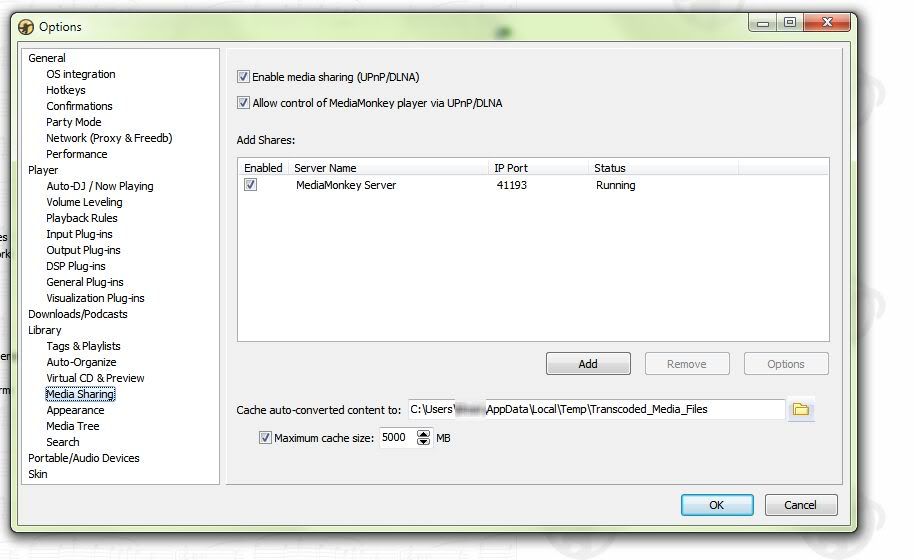
Step 1. If you are not already using Media Monkey as a Media Server, do that.
Tools > Options > Library > Media Sharing
Tick all the check boxes.
Don't be afraid.
You don't have to know what the heck you're doing.
It'll look like this.
Okay.
Step 2.
(Oh...click "OK" at the bottom of that MM Screen...<forehead slap>)
Step 2.
On your Droid:
A. Make sure you are connected to your wireless network.
(If you need help doing this, holler to me at spamspambacon@gmail.com)
B. Surf to apps already on your device. (Don't go to the market)
Look for a green icon called "DLNA".
(Swear to krap, it's nothing fancier than that....)
Start that app like you normally do all the others.
It might ask you a stupid question... I can't remember... but it should be just a simple start up process.
If you've got more than 1 media server running, it'll ask you to pick one.
Pick Media Monkey.
My DLNA App has 4 huge buttons:
PLAY Media
Copy Media to Server
Copy Media to Phone
Share Media
Clicking on "Copy to Phone" brings up all your media (music, video, podcasts, ebooks, etc) listed in MM...
and you can download the pieces you like...
I grab Cisco podcasts to listen to, on the way to work.
(That's a lie, but it sounds like I'm studious and hardworking)
Enjoy!
Spammy
Yes, you *CAN* do that
I have a DROID3.
With the applesauce/spinach/chinese food OS (or whatever the latest is, right now)
I just tested what you want to do, from that phone.
And I have a nightmare for a LAN network
I'm a Cisco Engineer (n00b-but it's my day job
) and I spend time effing with stuff, and end up with a tangled mess, most days So, a plain vanilla network (router/desktop PC/Android) will be light years easier to configure.
Ready?
THIS IS HARD!!!
Step 1. If you are not already using Media Monkey as a Media Server, do that.
Tools > Options > Library > Media Sharing
Tick all the check boxes.
Don't be afraid.
You don't have to know what the heck you're doing.
It'll look like this.
Okay.
Step 2.
(Oh...click "OK" at the bottom of that MM Screen...<forehead slap>)
Step 2.
On your Droid:
A. Make sure you are connected to your wireless network.
(If you need help doing this, holler to me at spamspambacon@gmail.com)
B. Surf to apps already on your device. (Don't go to the market)
Look for a green icon called "DLNA".
(Swear to krap, it's nothing fancier than that....)
Start that app like you normally do all the others.
It might ask you a stupid question... I can't remember... but it should be just a simple start up process.
If you've got more than 1 media server running, it'll ask you to pick one.
Pick Media Monkey.
My DLNA App has 4 huge buttons:
PLAY Media
Copy Media to Server
Copy Media to Phone
Share Media
Clicking on "Copy to Phone" brings up all your media (music, video, podcasts, ebooks, etc) listed in MM...
and you can download the pieces you like...
I grab Cisco podcasts to listen to, on the way to work.
(That's a lie, but it sounds like I'm studious and hardworking)
Enjoy!
Spammy